Change a price or a dish
After this article Joep works from your updated menu, with the new price, the new dish, or without the dish you took off.
What you need
- Your whole menu with the change in it: as a PDF, a photo or an Excel file, or as text to type in.
- A list of the offers you now have on dishes. You set those again afterwards.
How long it takes: 5 minutes
Steps
Change the price, the name or the dish in your own menu.
You cannot change single dishes in My Joep: you upload the whole menu again. A dish you add goes in with the rest. A dish you take off your menu is then gone for Joep too.
Open My Joep and go to Menu.
The block “How Joep knows your menu” says: “This is the menu Joep works from. Something wrong? Upload a new menu below.”
Choose “File or photo” or “Type it in” under “Upload a new menu”.
If you type the menu, put one dish per line, with its price.
Add your updated menu and click “Upload”.
A new menu replaces the current one once it has been processed. Until then Joep uses the old one. Processing usually takes a few minutes.
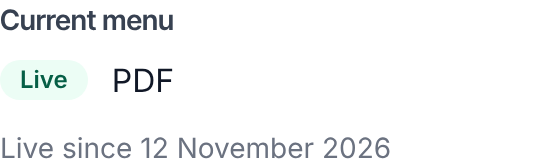
Wait until the label “Live” shows under “Current menu” again.
While it says “Processing”, the page refreshes by itself. If it says “Being reviewed”, we check the menu first and put it live afterwards.
Check in “How Joep knows your menu” that your change is there.
The search field above the menu finds the dish quickly.
Set the offers you had on dishes again, and click “Save”.
A new menu starts without offers on dishes. Choose the offer on the dish again. Your offers on the whole order and your discount code stay as they are.
How to tell it worked
Under “Current menu” it says “Live” with today’s date, and “How Joep knows your menu” shows your change. Call your Joep number and ask about the dish to hear that Joep uses the new menu.
Not working?
You uploaded only the dish you changed.
A new menu replaces the whole menu, so Joep then knows only that one dish. Upload your full menu again.
Your new menu says “Being reviewed” or “Did not work”.
Until a new menu is live, Joep uses the old one. With “Being reviewed” we check the menu and put it live afterwards. With “Did not work” you upload the menu again, for example as a clearer photo, or email support@joep.ai.
A dish says “no price”.
Joep then cannot take that dish in an order. Put the price clearly next to the dish in your menu and upload the menu again.
Related articles
Updated on