Pair your receipt printer
After this article the orders Joep takes come out as a receipt from the printer at your counter.
What you need
- A Windows PC at the counter, with your receipt printer connected to it.
- Internet on that PC.
- My Joep, open on that PC or on your phone.
How long it takes: 10 minutes
Steps
Open My Joep and go to Receipt printer.
You see three steps, one under the other: “Install the Joep app”, “Pair the app with a code” and “Paired receipt printers”.
Click “Get it from the Microsoft Store” on the PC at the counter and install the app.
Does the Microsoft Store not work on that PC? Choose “Download the installer” instead. Never install both, or every receipt prints twice.
Click “Create a pairing code” in My Joep.
You get a six-digit code. Under it you see until what time it is valid. If you create a new code, the previous one stops working.
Open the Joep app on the PC and click “Koppelen” at the top.
The app is in Dutch: “Koppelen” means pairing. A fresh install is in “Demomodus”, a demo mode in which the app makes up trial orders to show how it works. Pairing turns the demo mode off by itself.
Enter the code, give the computer a name and click “Koppelen”.
A name such as “Kassa voor” (front till) or “Keuken” (kitchen) helps when you pair more than one PC. After that the top of the app shows the name of your business, with “Verbonden” (connected) beside it.
Go to “Instellingen” in the app and choose your printer.
Under “Verbinding” choose “Netwerkprinter (IP-adres)” for a network printer or “Windows-printer (USB)” for a USB printer. A USB printer is only in the list once the driver of the manufacturer is installed. Choose the paper width of your printer too.
Click “Testbon printen”.
This prints a test receipt. If it comes out and reads well, the printer is set up. If not, the app says what to check.
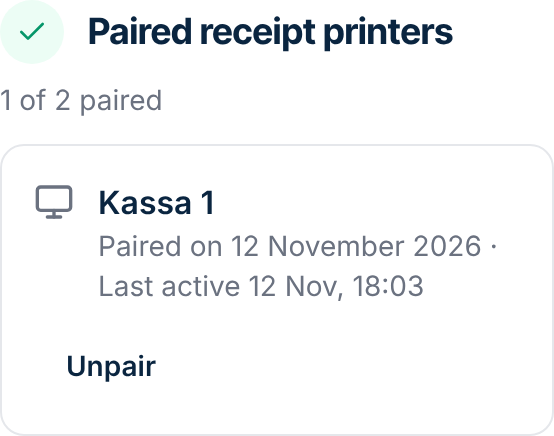
Check in My Joep that your PC is listed under “Paired receipt printers”.
You see the name of the PC, the day you paired it and when it was last active. Refresh the page if it is not there yet.
How to tell it worked
The test receipt came out of the printer, the app says “Verbonden” and My Joep lists your PC under “Paired receipt printers”. From now on the app prints the orders Joep takes.
Not working?
The app says the pairing code is wrong or has expired.
A code is valid for fifteen minutes and works once. Create a new pairing code in My Joep and enter that one. Does the app say you ask BullNice for the code? You create it yourself in My Joep.
Your printer is not in the list, or the test receipt does not come out.
A USB printer is only in the list once the driver of the manufacturer is installed. For a network printer you enter its IP address. That is usually on the self-test of the printer, and the port is nearly always 9100.
My Joep says you have the maximum number of receipt printers.
Click “Unpair” beside a PC you no longer use, then create a new code. If you need more, email support@joep.ai.
Related articles
Updated on