The receipt does not print
After this article you know where it goes wrong between Joep and your printer and what to do about it.
What you need
- The PC at the counter that has the Joep app on it.
- Your receipt printer, with paper in it.
- My Joep, on your phone for instance.
How long it takes: 10 minutes
Steps
Check that the PC at the counter is on and that the Joep app is running.
The app only prints while the PC is on. It starts by itself when you log in to the PC and keeps running when you close its window. You then find it among the icons beside the clock.
Open the app and read what it says at the top, beside the name of your business.
The app is in Dutch. “Verbonden” (connected) is good. With “Geen verbinding” the app cannot reach Joep: check that the PC has internet. With “Niet gekoppeld” (not paired) you pair the PC again, with a code from My Joep.
Read the message in the bar at the top of the app, if there is one.
If something is wrong with the printer, it says there what to check: whether the printer is on, whether there is paper in it, whether the lid is closed and whether the cable is plugged in.
Go to “Instellingen” in the app and click “Testbon printen”.
This prints a test receipt. If it comes out, the printer works. If it does not, the app says what is wrong, for instance that no printer has been chosen.
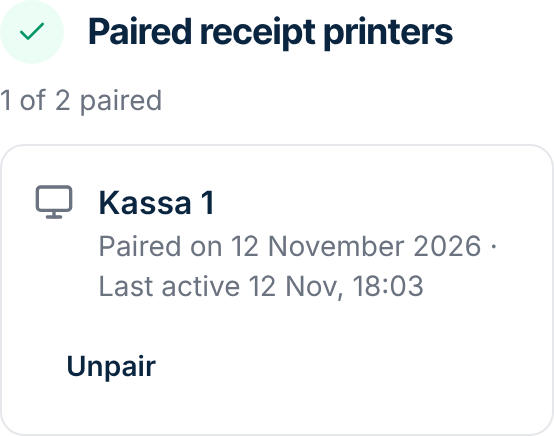
Open My Joep, go to Receipt printer and look under “Paired receipt printers”.
Beside your PC it says when it was last active. If that is more than a few minutes ago, the app has no contact with Joep. If your PC is not listed, pair it again with “Create a pairing code”.
Click “Opnieuw printen” at the order in the app.
An order that came in while the PC was off or had no internet is printed by the app by itself as soon as it is connected again. If printing failed a few times, this button prints the receipt.
How to tell it worked
The test receipt comes out of the printer, the app says “Verbonden” and My Joep shows beside your PC that it was active just now.
Not working?
The order is in the app, but it is not printed by itself.
Then automatic printing is off. In the app, go to “Instellingen”, then “Bonnen”, and tick “Automatisch printen”, or click “Nu printen” at the order.
The caller chose the payment link and has not paid yet.
The receipt then only comes out of the printer once the order is paid. If the caller does not pay in time, the order lapses and no receipt is printed.
The top of the app says “Demomodus”.
That is a demo mode: the app makes up trial orders and receives nothing from Joep. Go to “Instellingen”, then “Verbinding”, and untick “Demomodus”.
Related articles
Updated on