Take no orders for a while
After this article your venue takes no orders for a while, on the phone and on your ordering site, for as long as you choose.
What you need
- Your login for My Joep.
- If you want: a short text for your customers, such as until when you are closed.
How long it takes: 1 minute
Steps
Open My Joep and go to Orders and payment.
At the bottom of the page is the block “No orders right now”. At the top of that block you read what holds right now.
Choose “No, no orders right now”.
Two things appear: how long it lasts, and a text for your customers.
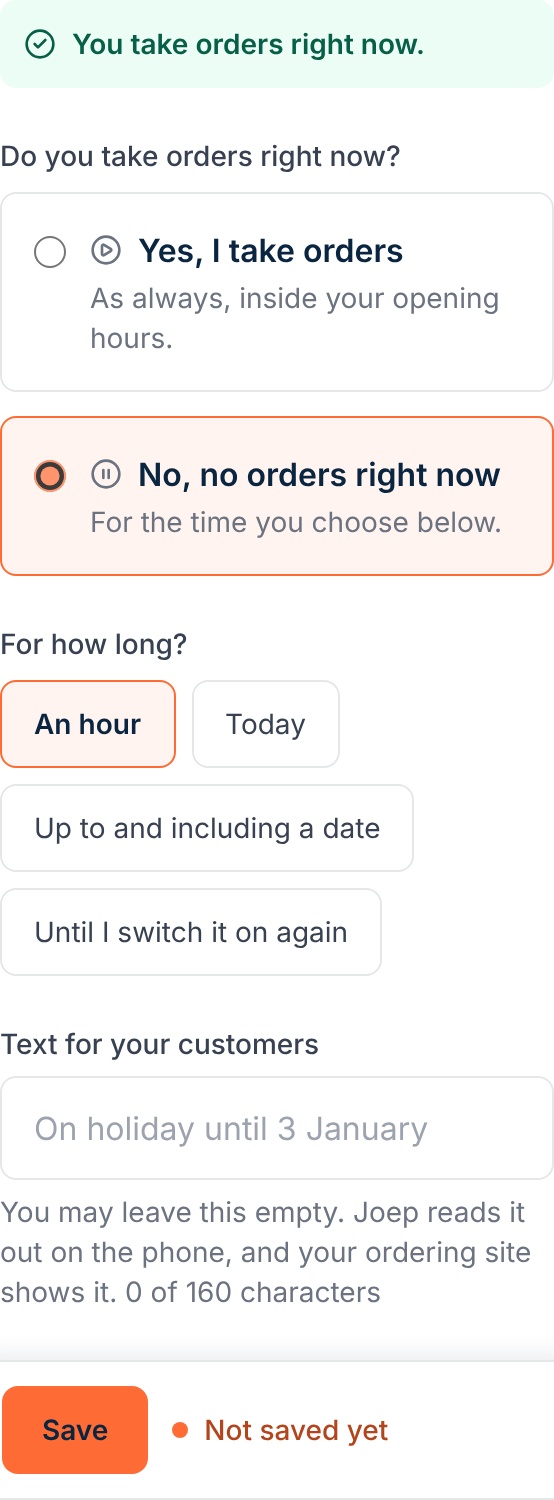
Choose one of the four options under “For how long?”.
With “An hour”, “Today” and “Up to and including a date” it switches on again by itself afterwards. A date can be at most 60 days ahead. With “Until I switch it on again” it stays off until you change it yourself.
Type a sentence in the field “Text for your customers” if you want.
For example until when you are closed. Joep reads this out on the phone, and your ordering site shows it. The field may stay empty.
Click Save.
It takes effect at once. Joep says on the phone that you take no orders right now and offers to note a call-back request. Your ordering site stays visible, but takes no orders.
Choose “Yes, I take orders” and click Save to switch it on again sooner.
You only need this when you do not want to wait until it switches on again by itself.
How to tell it worked
At the top of the block “No orders right now” you read that you take no orders, and until when. On your ordering site a customer cannot order and sees your text.
Not working?
Joep still takes orders.
Check whether you clicked Save after your choice. At the top of the block you read what holds right now: if it says you take orders, your choice was not saved.
It is on again although you did not do that.
Then you chose an hour, today or a date: after that it switches on again by itself. To decide yourself when, choose “Until I switch it on again”.
You cannot pick the date you want.
A date can be today or later, at most 60 days ahead. If you are closed for longer, choose “Until I switch it on again” and switch it back yourself.
Related articles
Updated on